
The community post for the integration of learning with onboarding to enable access to courses for Pre-Hires outlines the essential requirements for integrating Onboarding and SuccessFactors Learning. It is possible to build upon this foundation to integrate the learning experience for your Pre-Hire user population more deeply. This can be accomplished by adding additional configuration to segment the Pre-Hire population from employee learning assignments and define a user experience that both provides the experience appropriate for Pre-Hires, as well as protects proprietary company information that is intended for your employee population. This blog will focus on the configuration required to accomplish these goals.
Baseline Configuration: ONB 2.0 to LMS
Our Onboarding guide explains the key steps to connect SAP Onboarding with SuccessFactors Learning. From that starting point, you can enhance the experience by segmenting Pre-Hire users from regular employees. As a result, you can deliver the right training while keeping sensitive content secure.
1. Extract data from Employee Central using Integration Center
- Create a simple output integration file to export the Onboarding New Hire user data
- Select starting entity = ONB2Process
2. Learning system configuration
- Modify the “SF User Connector” properties file in the Learning system configuration
Note, the corrected settings from Step 2 Details are:
- Search for this Configuration Key“sfuser.field.transform.data.NOTACTIVE.N” and add “active_external_suite” with existing statuses
- Search for this Configuration Key“sfuser.field.transform.data.NOTACTIVE.Y” and add “inactive_external_suite” with existing statuses
3. Schedule the Integration Center Job to export User data for Learning
4. Schedule the Learning SF USER CONNECTOR to import the Pre-Hire user information
The additional configuration to further define what a Pre-Hire can access and how their profiles are created and managed in Learning can be broken down into two functional components: Learning configuration and Integration Center configuration.
Configuration Requirements for Learning
Segmenting ONB Pre-Hires into a separate Security Domain excludes the Pre-Hire Onboarding population from any existing assignment profiles, as the Security Domain is not a subdomain configured in existing assignment profiles. Creating an ONB User role provides control over what the Pre-Hire can access in Learning, different from that of an existing employee.
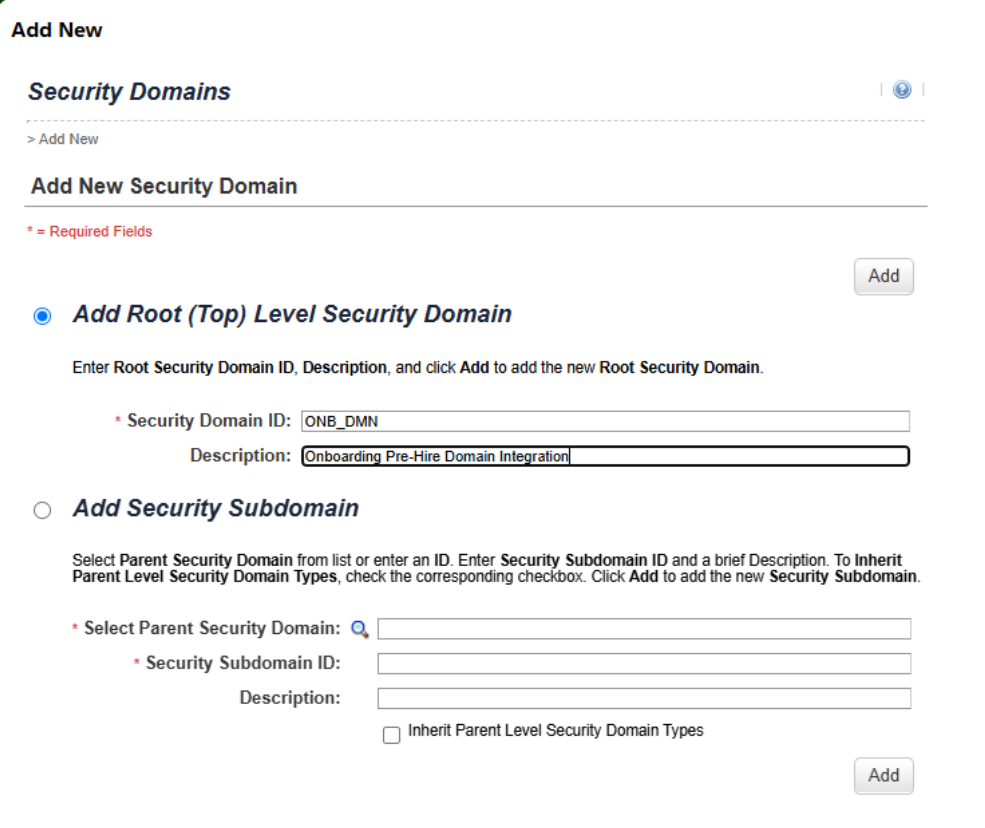
1. ONB Security Domain ID
- Create a new root-level Security Domain that the Integration will put all ONB users into. For example, ONB_DMN
2. ONB Role ID
- The Role ID that the Integration will assign to anyone in Learning as a Pre-Hire. This role ID should be limited to the bare level of access required. Typically, this means assigning permissions that allow them to access assigned training and learning history, but excluding permissions such as report access, library search, bookmarks, My team, and Easy Links.
3. Update Learning CONNECTORS
- sfuser.connector.defaultValue.studentRoleID=NULL
- sfuser.connector.input.file.multiple=true
4. Create an Assignment Profile for Pre-Hire learning assignments.
- Add Security Domains: Security Domains = ONB_DMN
- Setup Rules Domain ID = ONB_DMN
Configuration Requirements for Integration Center:
Adding in the default Security Domain and Learning User role to the ONB Integration, and the existing Learning User sync manages the users uniquely and separately depending on their intended access to Learning. Once the Pre-Hire completes their Onboarding process, they will be included in the standard Learning User sync population. When this occurs, their domain and role will be updated to the configured domain and role in the employee file. It is important to note that all the learning history from the Onboarding process remains with the employee’s user record. Any assignments that were not completed would be removed when they no longer match the ONB Assignment Profile(s).
1. ONB Integration Job
- Change the Effective Date on the Filter and Sort tab to 2099-12-31
- Add DMN_ID and ROLE_ID to the Header row(s)
- Set the Default Values as “ONB_DMN” and “ONB_USER” respectively.
- Change the File Extension to txt.2 on the Destination Settings tab.
2. Existing Learning User Sync Job
- Add DMN_ID and ROLE_ID to the Header row(s)
- Set the Default Value to the employee Domain ID and employee Role ID.
- In the destination settings, change the File Extension to txt.1
Note: If your organization uses a more complex Security Domain Hierarchy for employees, the existing mapping for the DMN_ID should be retained and not updated with a default value.
3. Schedule the Integration Center Job for the Onboarding Pre-Hire Integration. This should be scheduled to align with the existing Learning Employee Central user sync, as both files will be processed in Learning sequentially.
4. Schedule the User Connector – SF job to pick up and process both files. The results are visible in “View Results” with each file process listed individually.
In addition to these required configuration updates, a leading practice is ONB Pre-Hire Users should not have a manager indicated on their User Profile. If a manager is added to the ONB User Profile, that manager will be able to manage (assign or remove) training to the Pre-Hire. Since Onboarding in SuccessFactors is a pre-hire status, the training assigned to the user should be carefully reviewed. It is possible that an Onboarding Pre-Hire user does not convert to an employee in the case of a failed background check, rescinded job offers, or other reasons. Your organization should carefully review the appropriate information for training to be assigned and shared before the conversion to an employee status.
For more information, please visit our Onboarding 2.0 page to explore how Veritas Prime can support your implementation and optimization of SAP SuccessFactors Onboarding.